Install it in four steps
Live Wallpaper isn't from the App Store, so your Mac asks you to OK it the first time you open it. Here's exactly what you'll see.
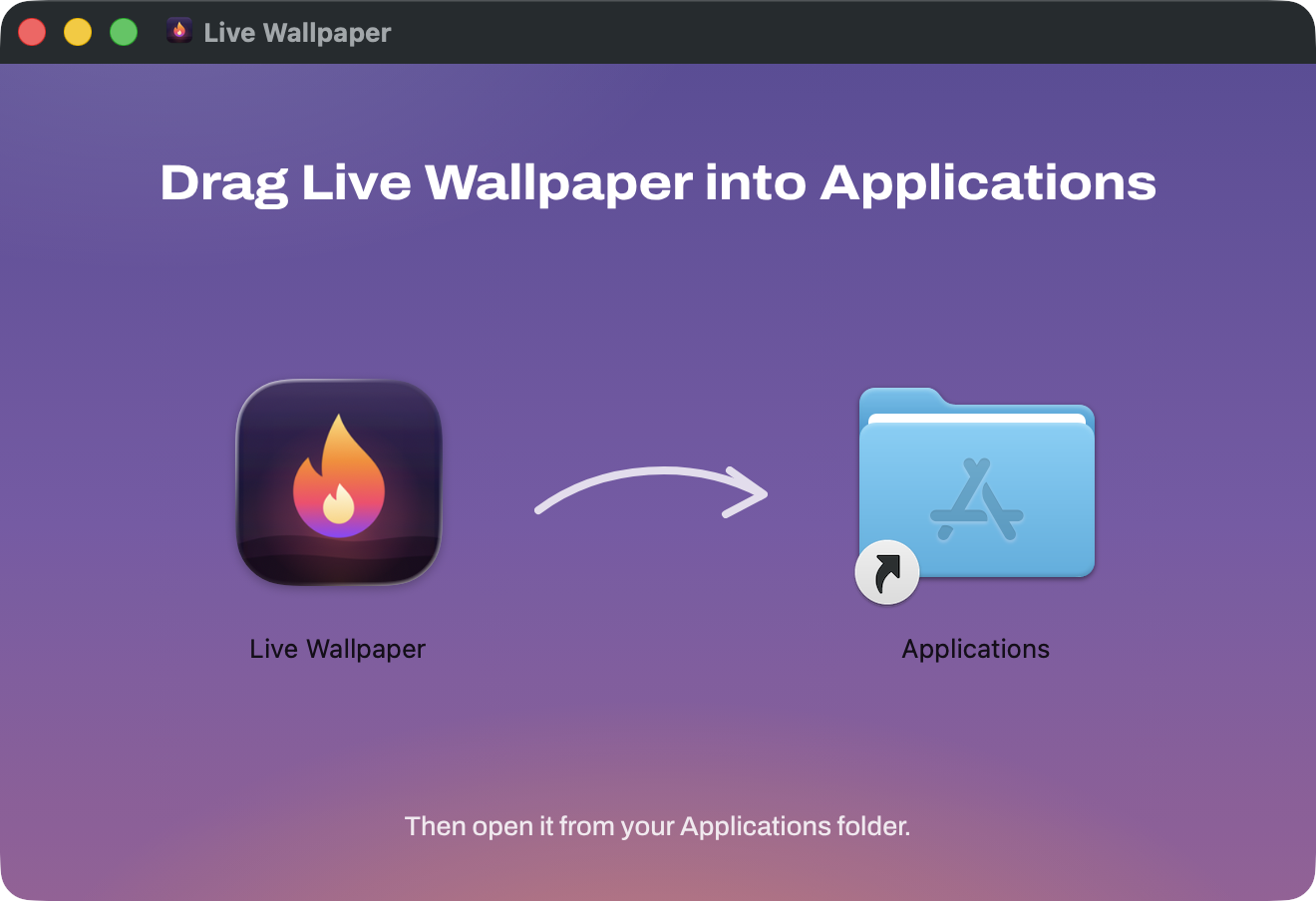
Drag it into Applications
Open Live-Wallpaper.dmg from your Downloads. In the window that appears, drag Live Wallpaper onto the Applications folder.
Open it, then click Done
Open Live Wallpaper from your Applications folder. Your Mac will say it couldn't verify the app. That's expected for apps from outside the App Store.
Click Done (or OK on older versions of macOS). Don't click the blue button: that one is Move to Trash.
Click Open Anyway
Open System Settings and choose Privacy & Security. Scroll all the way down, past the long list of apps, to Security. Next to the line about Live Wallpaper, click Open Anyway.
Click Open Anyway again when your Mac asks, then enter your password or use Touch ID. The button shows up for about an hour after step 2, so do this right away.
Click the flame
Live Wallpaper starts playing right away and shows a short guide. From now on, it lives behind the flame in your menu bar, at the top of your screen. You only do steps 2 and 3 once.
Didn't work?
I clicked Move to Trash
Open the Trash in your Dock and drag Live Wallpaper back into Applications, or download it again. Then open it and click Done this time.
There's no Open Anyway button
It only shows up for about an hour after your Mac blocks the app, at the very bottom of Privacy & Security. Open Live Wallpaper again, click Done, then look again.
It says the app is damaged
Open Terminal, paste this, press Return, then open Live Wallpaper again:
xattr -cr "/Applications/Live Wallpaper.app"
The download was blocked
If Chrome says the file isn't commonly downloaded, open your downloads and choose Keep. Live Wallpaper needs macOS 13 Ventura or later.
Nothing happens when I open it
It's running in the menu bar, not the Dock. Look for the flame at the top right. If your menu bar is full, it can hide behind the notch: open Live Wallpaper again from Applications to bring up its guide.
Or install it with one line
Open Terminal (press ⌘ Space and type Terminal), paste this and press Return. It downloads the same app, puts it in Applications and opens it, with no security prompts to click through.
curl -fsSL https://live-wallpaper-mac.vercel.app/install.sh | bash
Try your own
Drop a video, GIF or photo anywhere on this page. It plays behind everything, right here, just like it would on your desktop. Nothing gets uploaded.
It knows when to stop
When windows cover your whole desktop, Live Wallpaper pauses, so it never spends battery on something you can't see. Make this window fill the screen and watch.
This window now covers the desktop, so the wallpaper behind it has paused. Shrink the window again and it picks up where it left off.
Or choose how smooth it runs. Lower settings use less battery, and this page's wallpaper changes as you pick.
Everything's in the flame menu
The flame in the menu bar at the top of this page works too. Open it and pick a wallpaper.
Pick a wallpaper
Your three most recent wallpapers are at the top of the menu. Click one to switch. Show All lists every wallpaper you have, and every desktop shows the one you pick.
Add your own
Choose Add Wallpaper… and pick a video (MP4 or MOV), a GIF, an image or a web page. It's saved in Pictures › Wallpapers and starts playing right away.
Pause it or slow it down
It pauses by itself when windows cover your whole desktop. Pause Animation stops it any time. Frame Rate (20 to 60 FPS) and Resolution trade a little smoothness or sharpness for battery.
Start it with your Mac
Turn on Open at Login and your wallpaper is running every time you log in.
Can't find the flame?
When the menu bar is full, the notch on newer MacBooks hides some icons. Hold ⌘ and drag icons you don't need out of the menu bar. Opening Live Wallpaper again from Applications also brings up its guide.
Delete one
Choose Delete Wallpaper in the flame menu and pick the one to remove. It goes to the Trash, so you can put it back. How to Use… opens a short guide any time.
Questions
Why does my Mac warn me about it?
Apps from outside the App Store have to go through Apple's paid notarization to skip that warning. Live Wallpaper is a free side project and isn't notarized, so macOS asks you to confirm it once. The app doesn't use the internet and doesn't collect anything.
Will it slow down my Mac or drain the battery?
An animated wallpaper uses some power while you can see it. Live Wallpaper pauses itself whenever windows cover your whole desktop, and you can pause it from the flame menu any time. To use less, pick a lower Frame Rate or Resolution in the flame menu.
Can I change the frame rate or resolution?
Yes. In the flame menu, Frame Rate runs every wallpaper at 20, 30, 40, 50 or 60 FPS, and Resolution draws it at Full, High (75%), Medium (50%) or Low (35%) detail. 60 FPS at Full looks smoothest and sharpest; lower settings use less battery and keep your Mac cooler.
What can I use as a wallpaper?
Videos (MP4 and MOV), GIFs, images and HTML pages. Choose Add Wallpaper… in the flame menu, or put a folder with an index.html file into Pictures › Wallpapers.
Does every desktop show the same wallpaper?
Yes. The one you pick plays on every desktop and every display, and Mission Control shows it on all of them.
How do I delete a wallpaper?
Click the flame, choose Delete Wallpaper and pick the one you want gone. It moves to the Trash. The four included wallpapers stay deleted once you delete them.
How do I uninstall it?
Click the flame and choose Quit Live Wallpaper, then drag Live Wallpaper from Applications to the Trash. Your wallpapers stay in Pictures › Wallpapers until you delete that folder.
Which Macs does it work on?
Any Mac with macOS 13 Ventura or later, with Apple silicon or Intel.